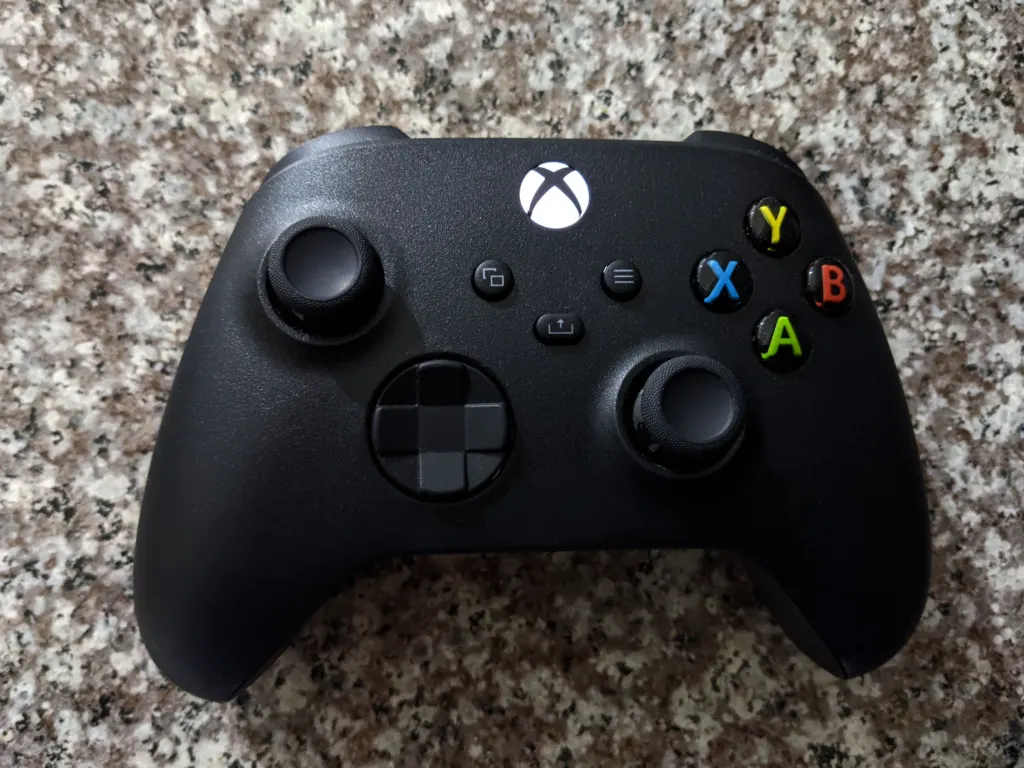
Your phone can now stand in for a missing controller on some Smart TVs. Microsoft began rolling out that preview for Xbox Cloud Gaming on November 4, alongside a US-only test that lets its new Xbox Nano Controller connect over Wi-Fi straight to the server running your game.
Both features are early. Microsoft says availability and supported games or devices may be limited while it gathers feedback, and it has published no list of titles and no latency numbers.
The phone trick
The phone option is aimed at a familiar living-room problem: the game is ready and the controller is upstairs. Launch a cloud game on a supported TV with no physical pad connected and the TV offers to use your phone for that session. Scan the QR code on screen and the controls open in the phone’s browser, with no app install described in the announcement. Android and iOS phones are both included, if they are supported models, and some games will get layouts tailored to how they play.
This one is broader than the Wi-Fi test. It is rolling out on supported TVs in every country where Xbox Cloud Gaming operates, a list that runs to 29 countries.
Why Microsoft is cutting out Bluetooth
Cloud gaming has a built-in delay problem. Every button press has to leave your hands, reach a data center, change the game and come back as video. On a Smart TV, the usual first leg is a Bluetooth link from controller to television, and the TV then relays your input to the internet.
Cloud connect removes the TV from that chain. The Nano Controller joins your home Wi-Fi and sends inputs directly to the cloud server. Microsoft’s claim is modest: “That can help reduce input latency, so gameplay may feel more responsive.”
Note the hedges. “Can” and “may” are the company’s own words, and the video still has to travel back through your TV however the inputs get there. A shorter path out is a real improvement, but it will not erase the delay of streaming the picture, and a crowded home network could eat some of the gain. Those trade-offs are the thing to watch for once players get hands-on time.
The comparison for anyone deciding whether to bother is straightforward:
- Phone as controller: no extra hardware, supported Smart TVs only, all Cloud Gaming countries, best for a quick session.
- Cloud connect: needs the Xbox Nano Controller, US only for now, works on supported Smart TVs and the web, built to trim input delay.
How to switch them on
For the phone controller, open Settings, then Account, in the latest supported Smart TV experience and enable Preview Features. The option then appears when you start a game with no pad attached.
Cloud connect takes a few more steps. On Android, set up the controller in the Xbox beta app; on a PC, use Xbox Accessories instead. Then follow the prompts to put it on your Wi-Fi network, then open a supported Cloud Gaming experience and sign in with the same account you used during setup. PC setup also requires enrollment in Microsoft’s Xbox preview program.
A busy autumn for the cloud service
The timing matters because Cloud Gaming’s terms have been shifting. In September, Microsoft introduced monthly limits of 5, 10 and 15 hours on Game Pass Essential, Premium and Ultimate, saying the service’s running costs required it. Extra time is sold separately, and in October the company began offering hours for games people already own at $0.24 to $0.40 an hour.
Against that backdrop, two features that make a session easier to start and nicer to play are a sensible pairing with a service that now counts your hours. Microsoft has not said when either preview will leave testing or reach more devices.
Testers can send reports through the preview itself. On a phone, tap the Xbox icon at the top left after connecting and choose Give Feedback. Cloud connect users can file theirs from the Xbox Accessories app on PC or the Xbox mobile app.
Further reading
Illustrative image. Image: uKER, CC BY-SA 4.0 via Wikimedia Commons
This article was produced with AI assistance and reviewed by our Editorial Desk. How we work.